Selling tickets with Tickets10
Tickets10 is the QRACCESS sales module: you create your ticket types, open sessions, charge online and deliver the ticket with its QR code, ready to validate at the door. This manual walks through, step by step and with real screenshots, how to set up sales from the panel and what your buyer sees.
The examples use a sample store for the «Congreso de Innovación 2026», with General, VIP and reduced tickets.
What you'll find in this manual
Sales panel
The overview of your sales and where to start.
Ticket types
General, VIP, reduced… with their price and limits.
Shifts and quotas
Sessions with capacity and allocation by ticket type.
Store
Configuring the public purchase website.
Coupons and discounts
Codes and automatic reductions.
Orders and payments
What has been sold and which gateway charges.
1. The sales panel
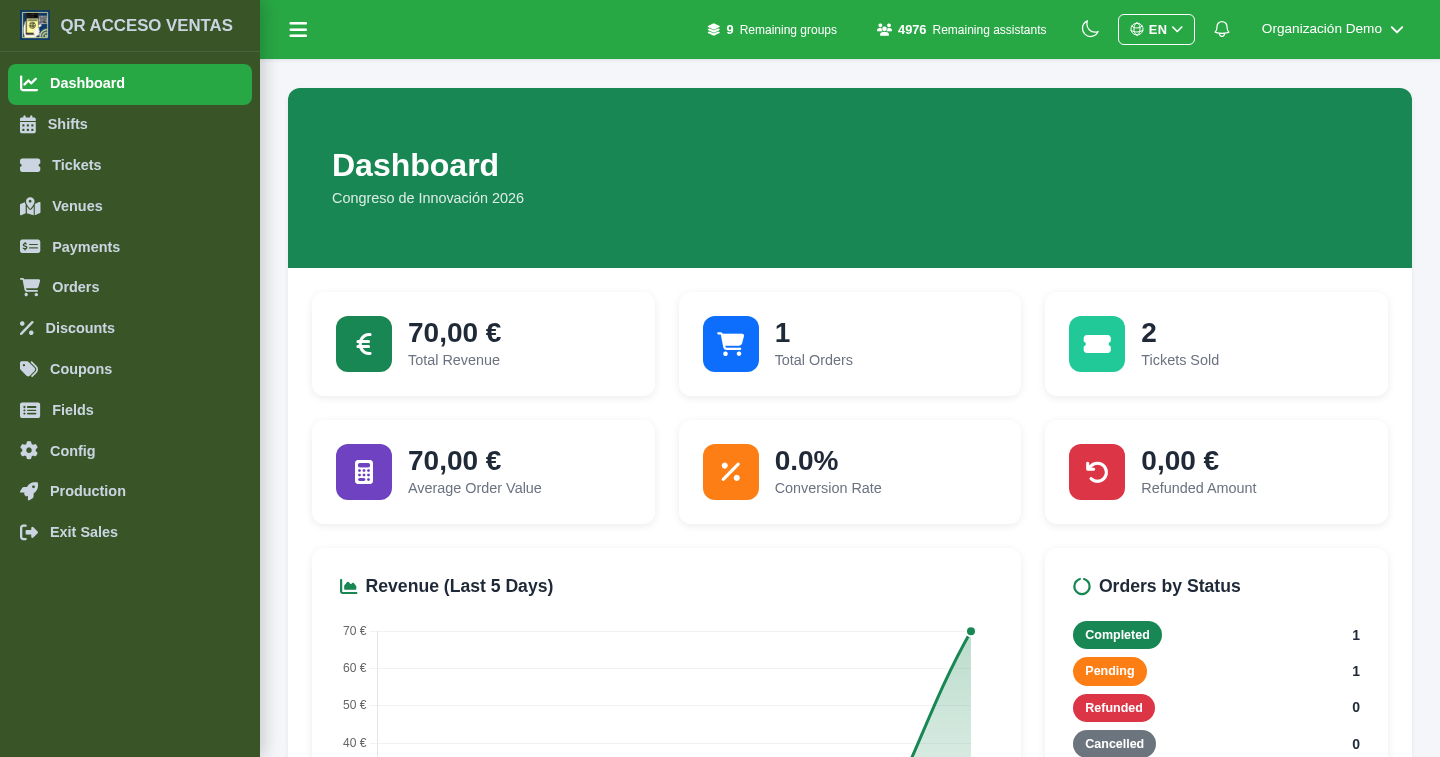
From a group's Registration/Sales button you enter Tickets10. The left-hand menu brings together everything about sales: shifts, tickets, venues, payments, orders, discounts, coupons, fields and configuration.
- The panel summarises revenue, tickets sold and recent activity.
- With Exit Sales you return to the group's general management.
2. Ticket types
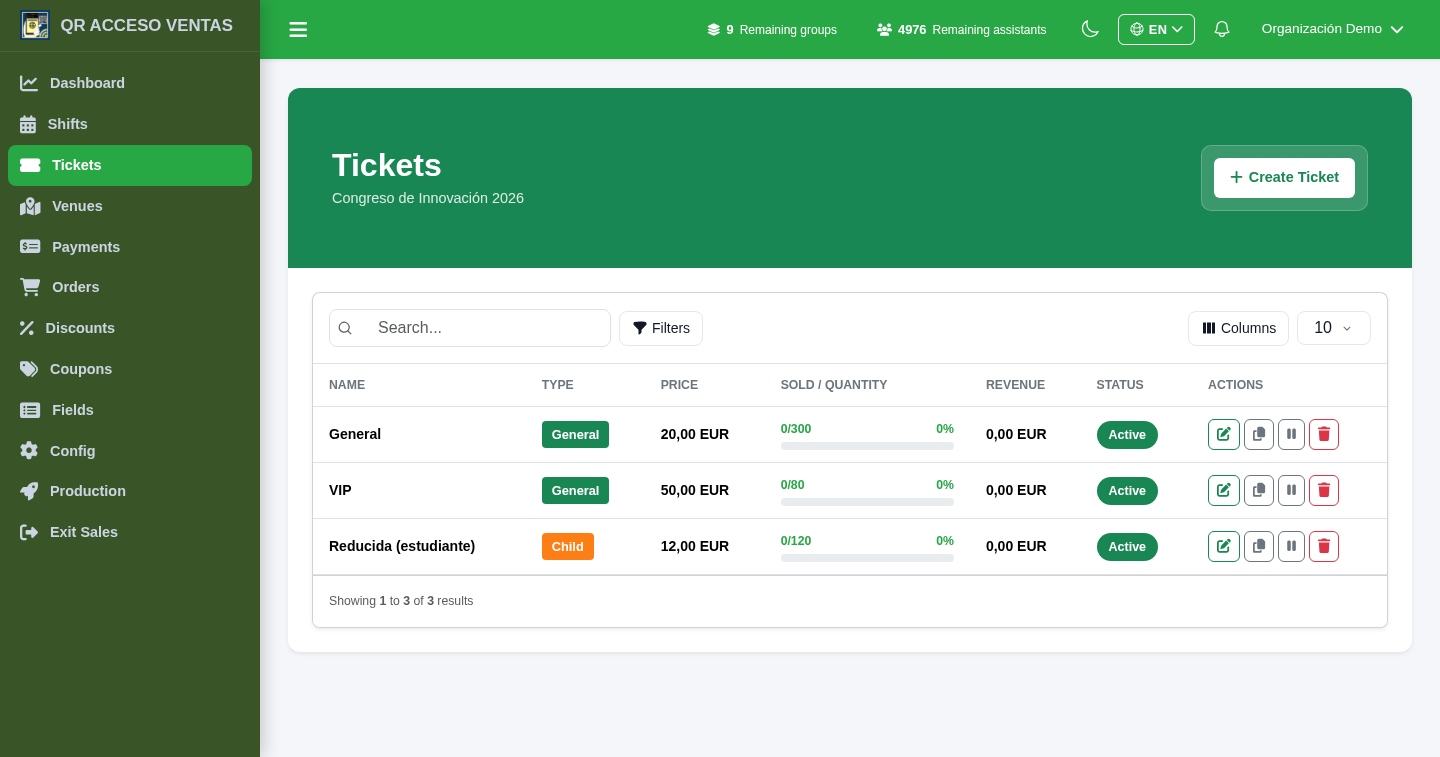
A ticket is a type: General, VIP, reduced… Each one has its name, price and its purchase limits.
- Set the price and currency, and a total quantity available.
- Define the minimum and maximum per order (for example, the reduced ticket, maximum 2).
- The details tab lets you describe benefits and restrictions (reduced, child, by-profile tickets…).
- The list shows sold / quantity and the status of each ticket.
Creating a ticket
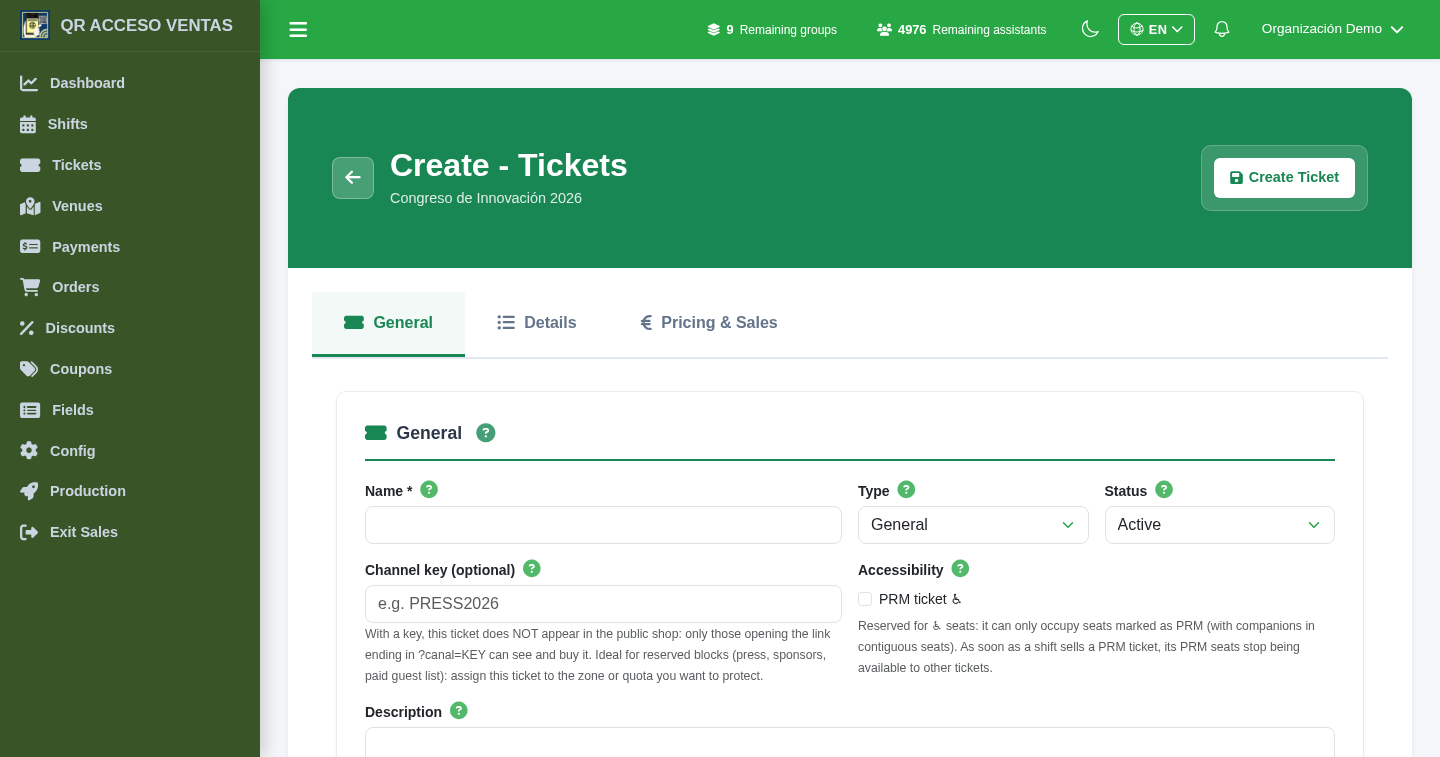
The creation form brings everything about a ticket type together in one place: basic data, price and sales, and the informational details.
- Name, type and status (active or hidden).
- Price, minimum and maximum per order, and overall quantity.
- Advanced options: channel ticket (only visible with a special link) or accessible-seat ticket (reduced mobility) with companions.
3. Shifts and quotas
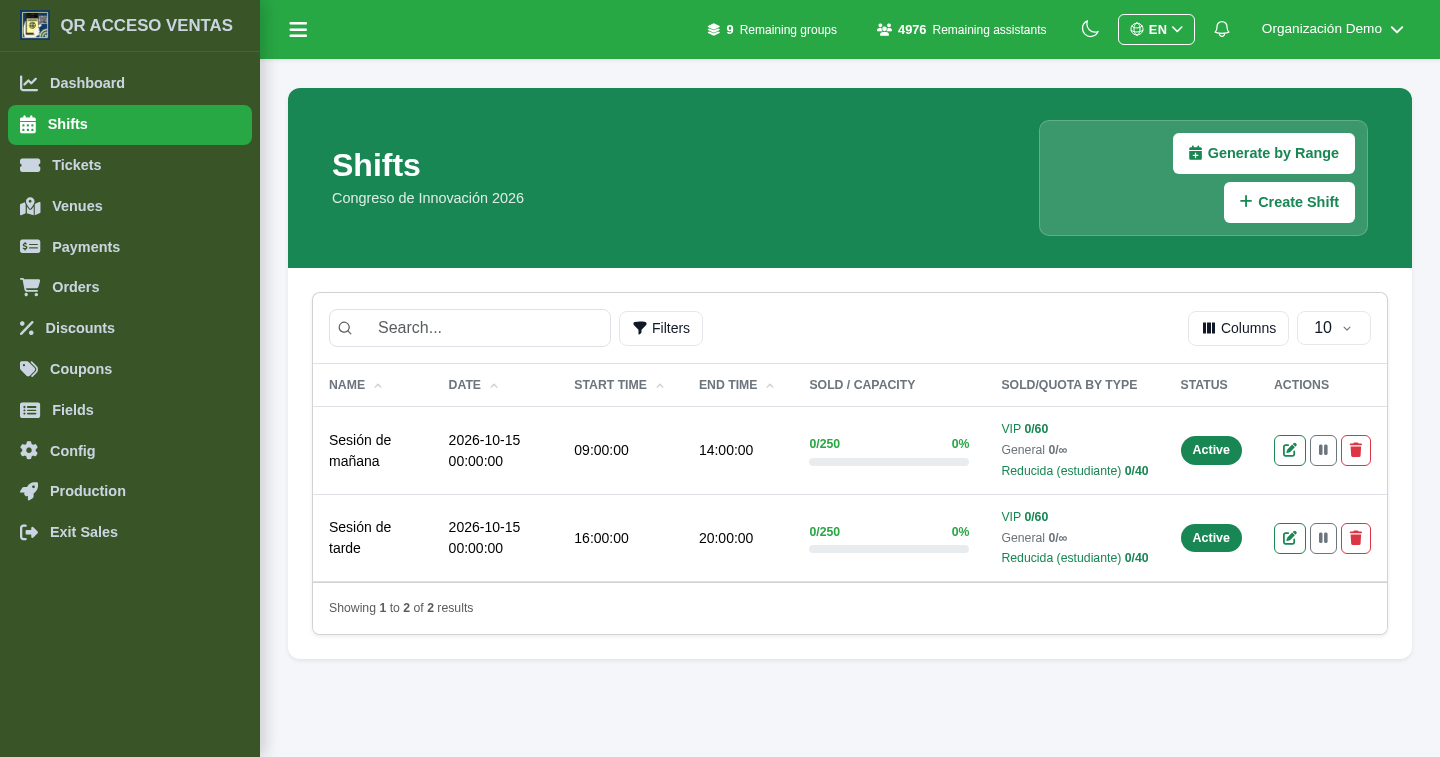
A shift is a session with its date, time and capacity. Tickets are sold within shifts, and each shift can distribute its capacity by type through quotas.
- Each shift has a capacity (the physical capacity, a hard limit) and a sales cut-off (how long before the start sales stop).
- You assign which ticket types are sold in the shift and, optionally, a quota for each one: for example, 60 VIP and 40 reduced within the 250 seats.
- Empty quota = that type draws from the shared capacity. Defined quota = its own cap within the shift.
- If the shift uses a venue, sales are by numbered seat (see the venues manual).
4. Configuring the store
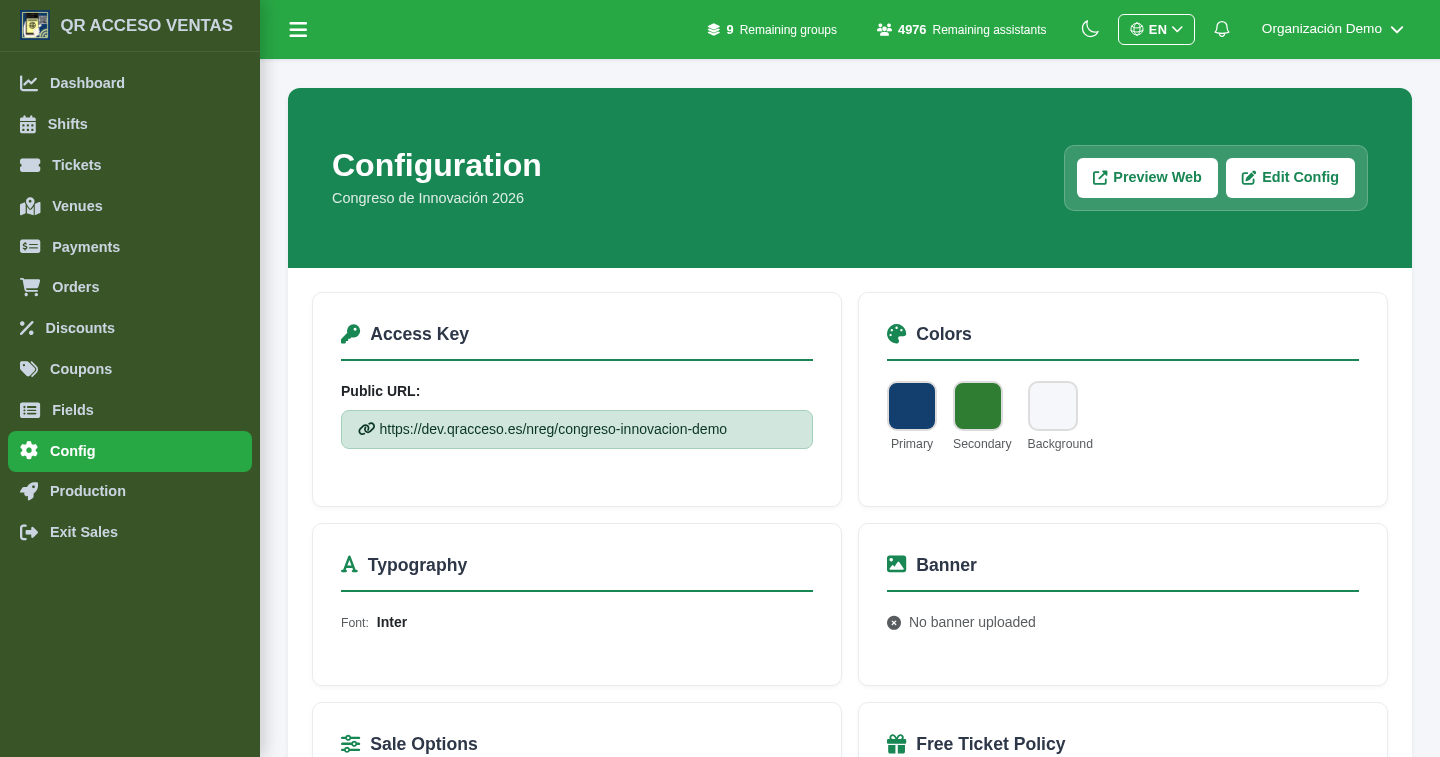
The configuration defines how your public sales website looks and behaves.
- Title, welcome texts, colours and logo: the store takes on the look of your event.
- Maximum tickets per order and reservation minutes (how long the cart is held while the buyer pays).
- Whether or not to show the remaining seats and a countdown.
- A maintenance mode to close the store temporarily, and an access key that forms the public link.
5a. Coupons
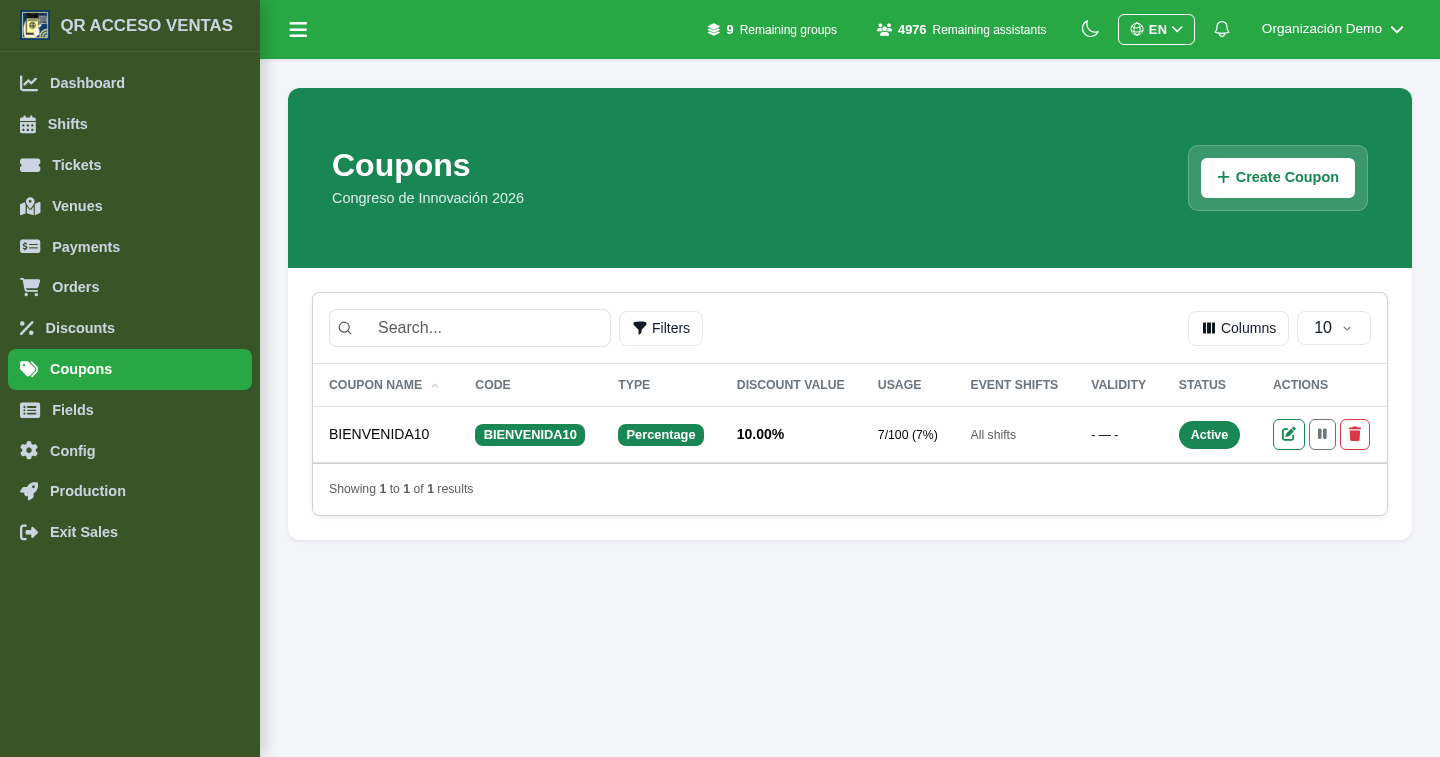
A coupon is a code the buyer enters to get a discount.
- Discount as a percentage or fixed amount.
- Usage limit, date validity and minimum purchase.
- You can restrict it to certain events, shifts or ticket types.
5b. Discounts
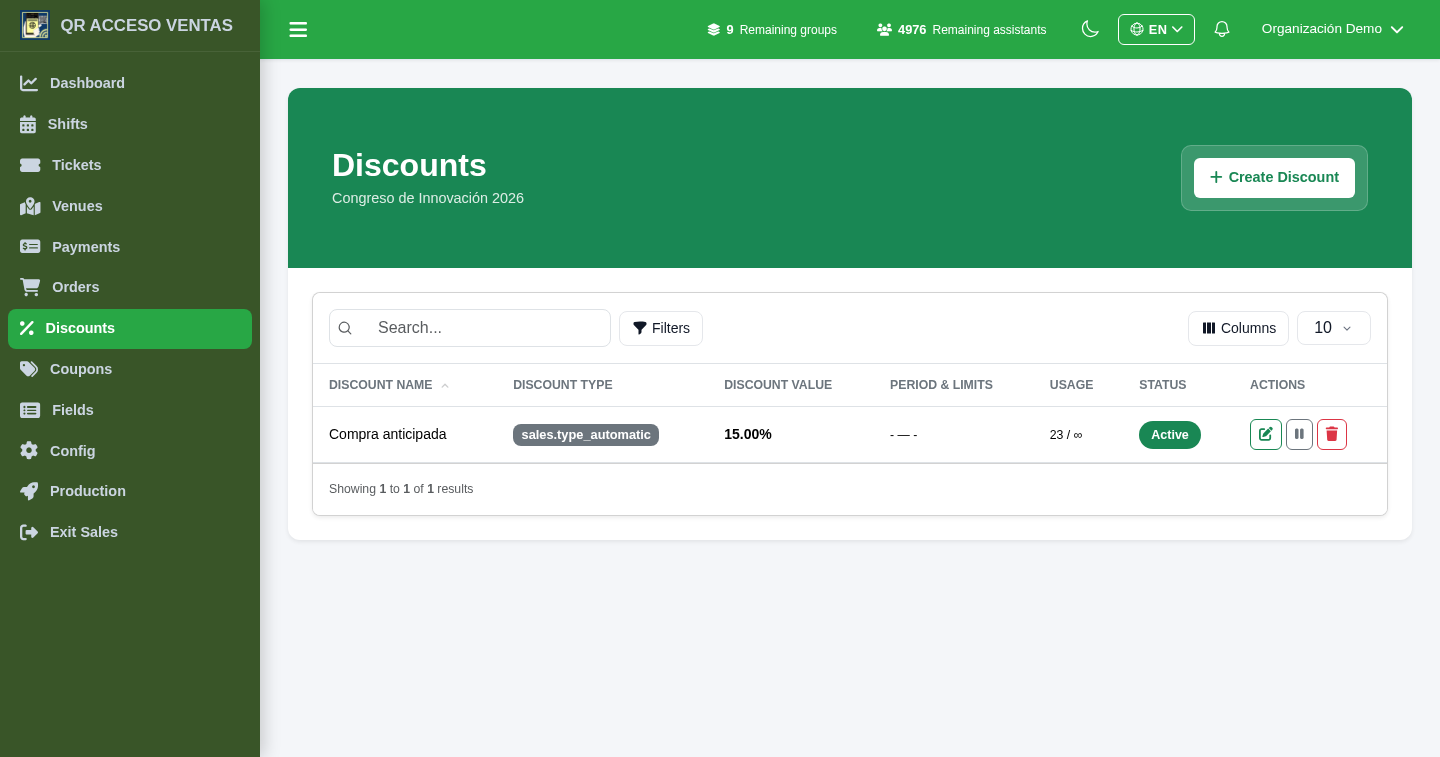
Unlike the coupon, a discount is applied automatically when its conditions are met, without the buyer typing anything.
- Percentage or amount, with date validity.
- Conditions such as a minimum number of tickets.
- It can be shown in the store with a label (for example, «-15% early purchase»).
6a. Orders
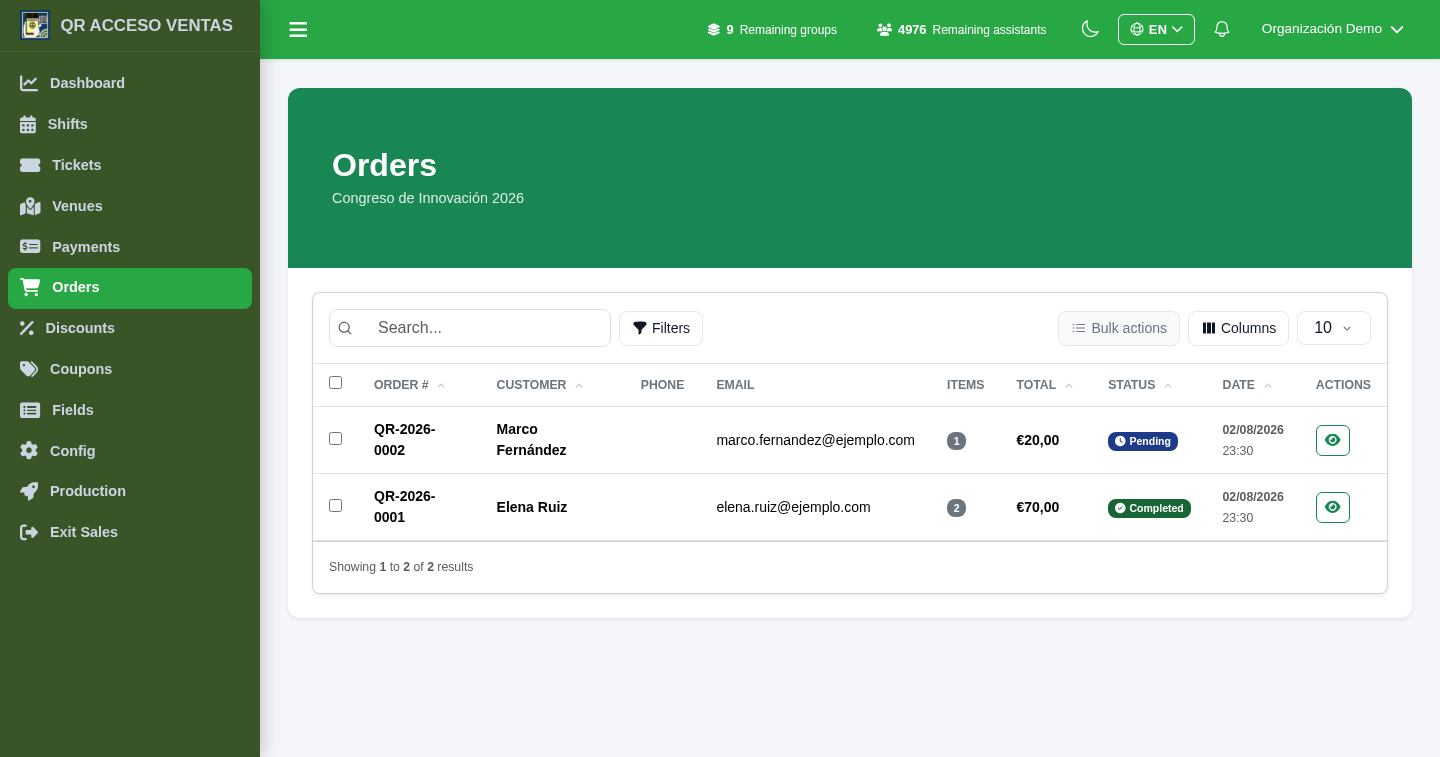
Each purchase generates an order. From here you see what has been sold, to whom and in what status.
- Statuses: pending, paid, cancelled or refunded.
- Each order details its tickets, the shift and the amount.
- You can resend the tickets or process a refund.
6b. Payments and gateways
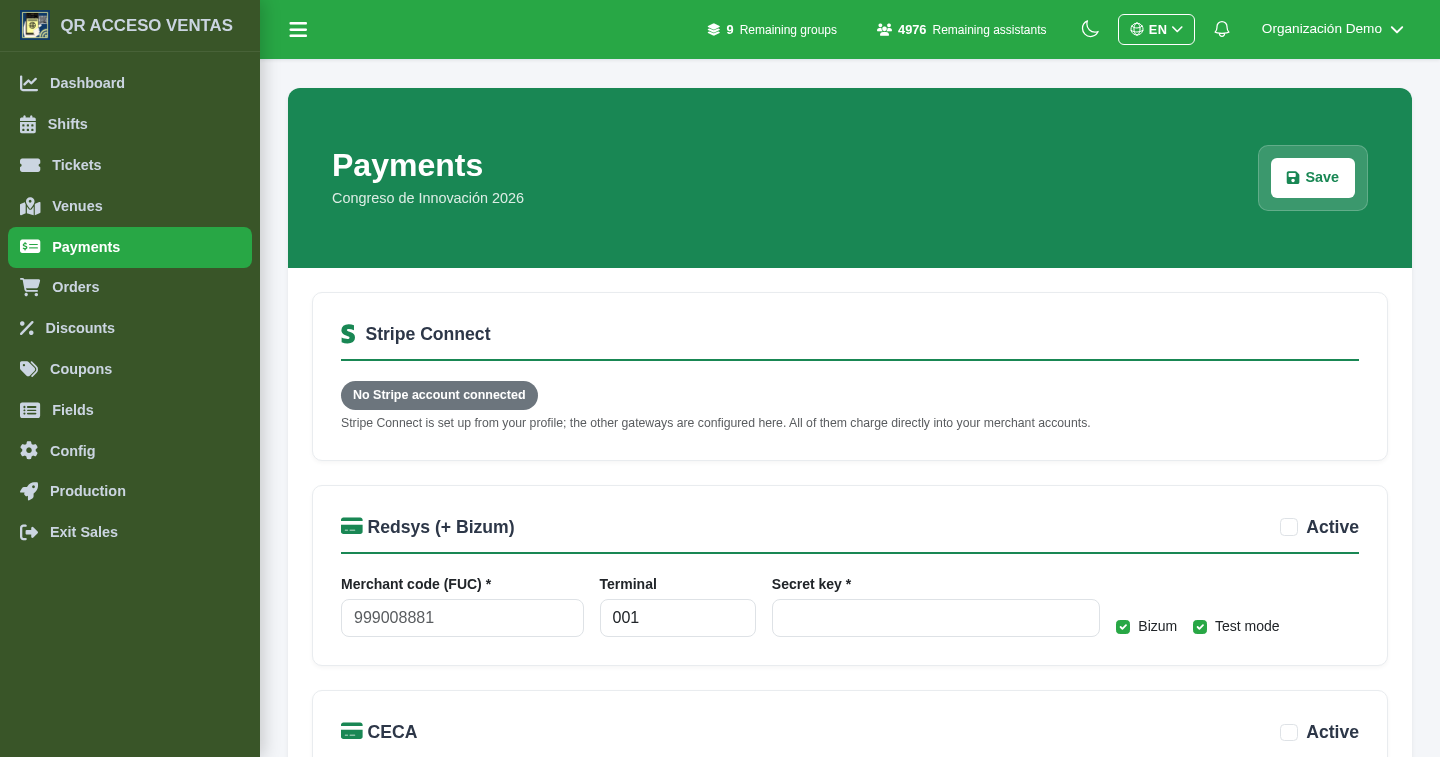
In Payments you connect the gateway you charge with. The money goes to your account, not to an intermediary.
- Compatible with the usual gateways (card, Bizum and others depending on your configuration).
- A test mode to rehearse the charge without real money before opening sales.
- Free tickets are also managed here, with their own rules.
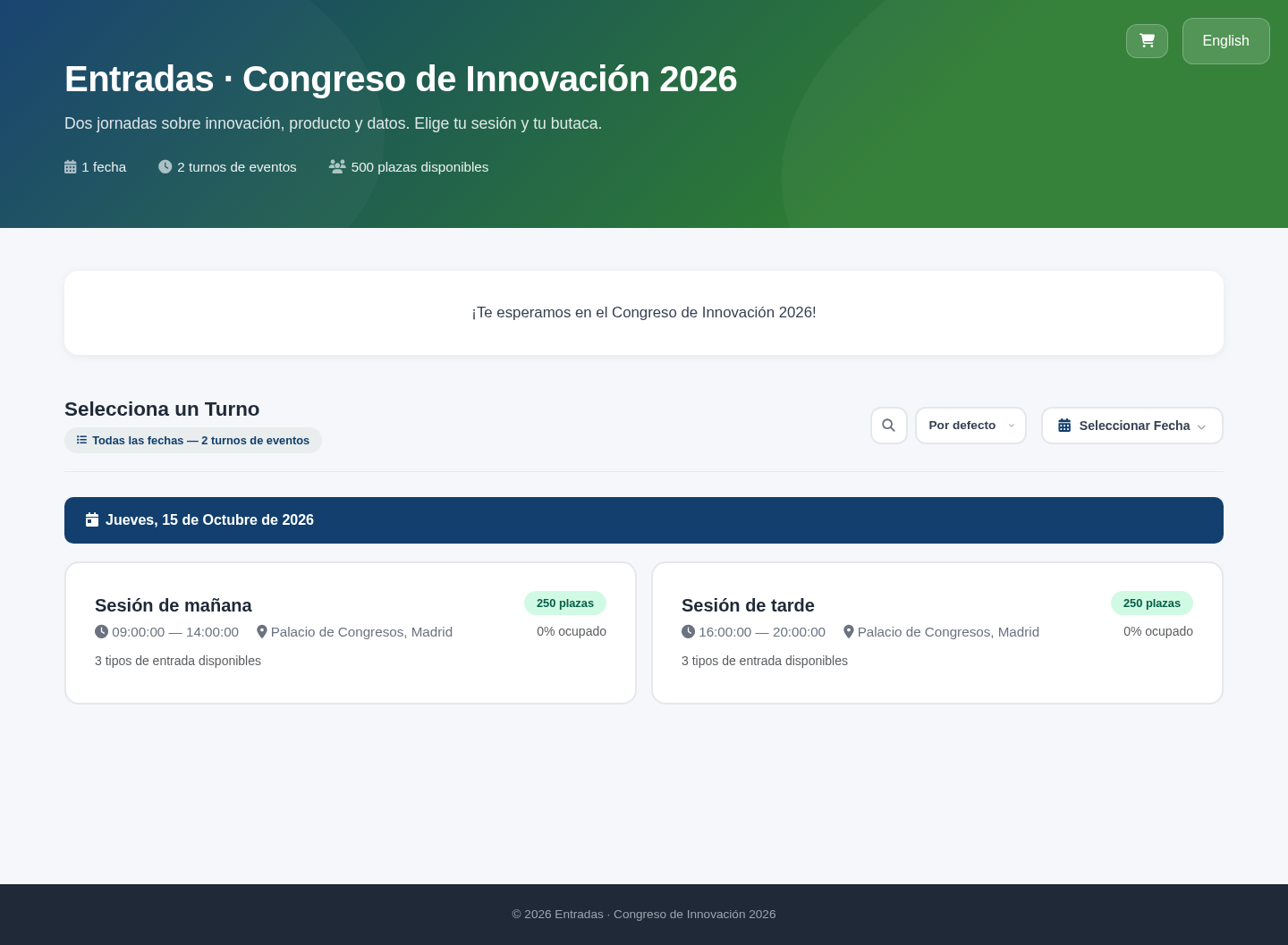
7. The store: what your buyer sees
With everything ready, your public store is accessible via its link. The buyer chooses session, ticket and —if there is a venue— seat, and pays.
- They see the available dates and shifts, with remaining seats if you enabled it.
- They choose their tickets respecting minimums, maximums and quotas, and can apply a coupon.
- The store is available in several languages: the buyer chooses theirs at the top.
- On payment, they receive their tickets with QR codes, ready for the door and for Apple Wallet.
And also…
For sales with numbered seats, see the venues manual; for general event management, the panel manual:
Want to sell tickets for your next event?
Create an account and set up your sales store from the web control panel.
Control panel: https://control.qraccess.com